Google Web Fonts – How to Use, Download, and Sync

Typography is the key element in the design process. While designing a web page, business card, brochure or newspaper advertisement fonts and text style plays an important role to get user attention. To design stunning elements we need fonts and fortunately, the big daddy provides a lot of them for free. We can use Google Web Fonts in our designs and they are pretty awesome and very easy to use.

How to use Google Web Fonts on a web page

It’s pretty easy to use Google Web Fonts on your website. You can do that in just three simple steps:

  1. Choose single or multiple Google Web Font(s) from Google fonts website: //www.google.com/fonts and add them in your collection.
  2. Hit the use link above the list of your selected fonts and Google will show you different methods to include these fonts on your website. Standard, @import or Javascript
  3. I always use Standard method with a small trick to load the fonts before displaying the web page.

Here’s the code you would need to use Google Web Fonts on your website.

I’ve added Open Sans and Lobster fonts to my collection for this example.

<head>
<link href='//fonts.googleapis.com/css?family=Lobster|Open+Sans' rel='stylesheet' type='text/css'>
<!-- This will prefetch content from google web fonts website -->
<link rel="dns-prefetch" href="//fonts.googleapis.com" />
</head>

The above code goes within the [htmltag tag=”code”]<head>…</head>[/htmltag] tags and the DNS-prefetch link tag will fetch the contents from Google Web Fonts website. This will help resolve issues like font changes after the page load.

body{
    font-family: 'Open Sans', sans-serif;
}
h1, h2, h3, h4, h5, h6{
    font-family: 'Lobster', cursive;
}

In the above CSS code, I’ve defined the body font as open sans and headings font as lobster. Similarly, you can use different fonts for different elements.

How to Use Google Web Fonts while Designing?

As a designer, we all need to design the mockups of the creative work before we can publish the same. If we need to use Google Web Fonts while designing layouts in Photoshop or Illustrator we will have to download the font and install the same in our Operating System.

We can always click the Download link to save the fonts on our hard drive and then install the font on our operating system. However, what will happen if that font is updated and new characters are added or there’s a new and improved version available for that font. We need to keep a check and if the new version is available, we need to uninstall the previous version and then install the new version.

What is there’s some tool which can automatically do this task and save us a lot of time and effort?

Fortunately, there are tools available that can make our life easy and keep Google Web Fonts updated all the time.

Using Skyfonts to Download and Sync Google Fonts

Fonts.com has teamed up with Google to offer google web fonts for desktops via Skyfonts software.

We are proud to have teamed up with Google to offer desktop versions of their popular Google Fonts free of charge. Offered for use in print, these fonts are delivered using SkyFont’s patent-pending font delivery technology and can be used anywhere.

Each time a font is updated — such as when new characters are added — SkyFonts will automatically update the font on your device. Syncing Google Fonts with SkyFonts will also improve your web browsing experience, by cutting the time spent downloading fonts. ~ Fonts.com

Skyfonts software is available for both Mac and Windows. You can choose the fonts you want to use while designing and Skyfonts sync these fonts with your operating system fonts and make them available in all applications as normally installed fonts. If a new version of the installed font is available, the Skyfonts application will automatically sync and replace the older one with the new version.

Download Skyfonts Software

There are other methods available to download all Google Web Fonts on your computer, however, I found Skyfonts the easiest and most efficient to keep all the fonts updated.

Signup.

Add Custom Post Types to Main WordPress RSS Feed

Custom post types are a great feature introduced in WordPress 3.0 and it extended the functionality and practical usage of this awesome CMS. While re-designing / re-structuring iogoos.com, I have used Custom Post Types for different sections on this website.

Now I want to add all these custom post types to the main WordPress feed so the users get updated content from each section via RSS. There are two ways we can do that. You can add the below code snippets to the functions.php file of your theme.

1. Add all Custom Post Types to Main WordPress RSS Feed

function extend_feed($qv) {
	if (isset($qv['feed']))
		$qv['post_type'] = get_post_types();
	return $qv;
}
add_filter('request', 'extend_feed');

Function get_post_types() will return all registered custom post types. Here you can learn more about get_post_types() function.

2. Add selected Custom Post Types to Main WordPress RSS Feed

I’ve used the woo-commerce plugin for the shop section of this website and this plugin added a few more custom post types that may be not relevant or useful for my readers. So with the code snippet below, we can add a few selected Custom Post Types to the main WordPress RSS Feed.

function extend_feed($qv) {
	if (isset($qv['feed']) && !isset($qv['post_type']))
		$qv['post_type'] = array('post', 'tutorials', 'tips', 'snippets', 'shop');
	return $qv;
}
add_filter('request', 'extend_feed');

If you notice, here instead of using the get_post_types() function, I supplied an array of specific custom post types slugs. This will add content to WordPress’s main RSS feed only from the specified post types.

Contact Us
iogoos.com

previous article

How to create Quick Search Bookmarks with JS

As a web designer, I always look for design elements for inspiration. So to search for images normally open Google.com, Flickr.com, and other preferred sites, apply different search filters and type keywords and then hit enter to view the results. It’s ok to follow this process if we need to do this two or three times a day. But for a designer, it’s not the case. We look for resources a lot and that wastes a lot of our valuable time.

What if we can automate this task and reduce a few steps? I created javascript bookmarks for different searches and it’s helping me a lot to save time and search for resources with only a click, type keywords, and hit enter.

Let’s create a bookmark to search google with an image size larger than 1024×768 resolution with a license filter labeled for reuse.

Step 1: Create search query

Open Google.com and search for “Abstract Wallpapers”.
This will show the result of the web search. Click Images to view image search results.

Step 2: Apply search filters

Now on this page, we can click on search tools and apply a few filters to our search results. You can apply whatever you want, however for this trick, I am setting Size to Larger than 1024×768 and Usage rights to Labeled for reuse.

Step 3: Get the query URL

By this time, the URL in the address bar has changed with specific query parameters we applied in the above steps. Copy the URL in the address bar and save it in a text or any editor you use to write Javascript.

Step 4: Write Javascript Code

The string we copied might be a very long string but we need to look for the keyword we used to search in step 1. In this case, it is the Abstract Wallpapers. The URL will have this value encoded which is something like “abstract+wallpaper”. So if you search for abstract, you will see the query param it issuing. In this case, is q=keyword

function(){
	var keyword = prompt("Type keywords:");
	var url = '//www.google.com/search?q='+keyword+'&hl=en&authuser=0&source=lnms&tbm=isch&sa=X&ei=q-QNU-LgIoSCrAezzoDIDw&ved=0CAcQ_AUoAQ&biw=1920&bih=1079#authuser=0&hl=en&q=abstract+wallpaper&tbm=isch&tbs=isz:lt,islt:xga,sur:fc'; 
	var win = window.open(url, '_blank'); 
	win.focus();
}

In the above code, line 1, is to start a javascript function, and line 6 is to wrap the function code.

Line 2, we define a Javascript prompt for the keyword to search.

Line 3, we define the URL we copied however, there’s one change we need to do. We need to pass the keyword variable to the query parameter so, remove everything after q= till & and pass the keyword variable instead. For this, we use the Javascript concatenation technique.

'string'+var+'string';

Make sure you use the same quotes for concatenation if your declaration is within single quotes use single otherwise double. If this isn’t right, the function will break.

Line 4, We use the javascript technique to open a tab or new page in the browser and pass the URL parameter with _blank for a new window or tab.

Line 5, We tell the program to focus on the new window.

Step 5: Creating the bookmark

Now our function is ready and we need to create a bookmark. Carefully bring all the code in one line and wrap it between
javascript:(FUNCTION_IN_ONE_LINE)();

The end result should be like this:

javascript:(function(){var keyword = prompt("Type keywords:"); var url = '//www.google.com/search?q='+keyword+'&source=lnms&tbm=isch&sa=X&ei=zzsGU5_mIouyrgf9uIDYDA&ved=0CAgQ_AUoAg&biw=1918&bih=1079#q='+keyword+'&tbm=isch&tbs=isz:lt,islt:2mp,sur:fc'; var win = window.open(url, '_blank'); win.focus();})();

Step 6: Test and create a bookmark

To test this, you can simply copy the entire line and paste it into the browser address bar. It should ask for the keyword. Once you type the keyword and hit enter, it should open the Google image search results with applied filters.

Once our test is passed, Right-click anywhere on the bookmark bar and click add new. Type a title and enter the code we created in the URL field. Save it.

Now you have a bookmark to search for images greater than 1024×768 size with a license to reuse.

You can create these bookmarks for any website, just change the URL and the keyword variable where it is required. Here are a few from my collection:

Google Image Search

javascript:(function(){var keyword = prompt("Type keywords:"); var url = '//www.google.com/search?q='+keyword+'&source=lnms&tbm=isch&sa=X&ei=zzsGU5_mIouyrgf9uIDYDA&ved=0CAgQ_AUoAg&biw=1918&bih=1079#q='+keyword+'&tbm=isch&tbs=isz:lt,islt:2mp,sur:fc'; var win= window.open(url, '_blank'); win.focus();})();

Flickr Image Search

javascript:(function(){var keyword = prompt("Type keywords:"); var url = '//www.flickr.com/search/?q='+keyword+'&m=tags&l=deriv&ss=0&ct=5&mt=photos&w=all&adv=1'; var win= window.open(url, '_blank'); win.focus();})();

Icon Search @ Iconfinder.com

javascript:(function(){var keyword = prompt("Type keywords:"); var url = '//www.iconfinder.com/search/?q='+keyword+'&maximum=512&price=free'; var win= window.open(url, '_blank'); win.focus();})();

Dribble Search

javascript:(function(){var keyword = prompt("Type keywords:"); var url = '//dribbble.com/search?q='+keyword; var win= window.open(url, '_blank'); win.focus();})();

Go ahead, spend some time to create these quick and easy bookmarks, and save huge time in the future. If you like this trick, please share the link with your friends.

contact us

WEb Development Services

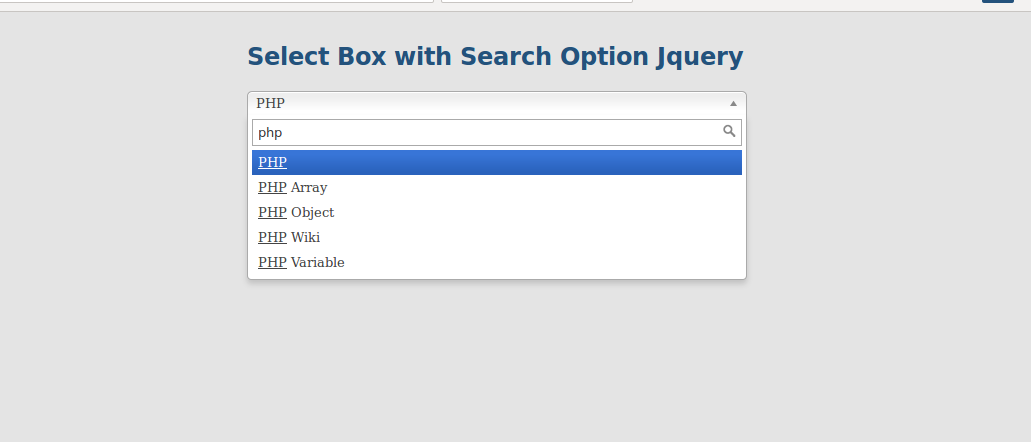
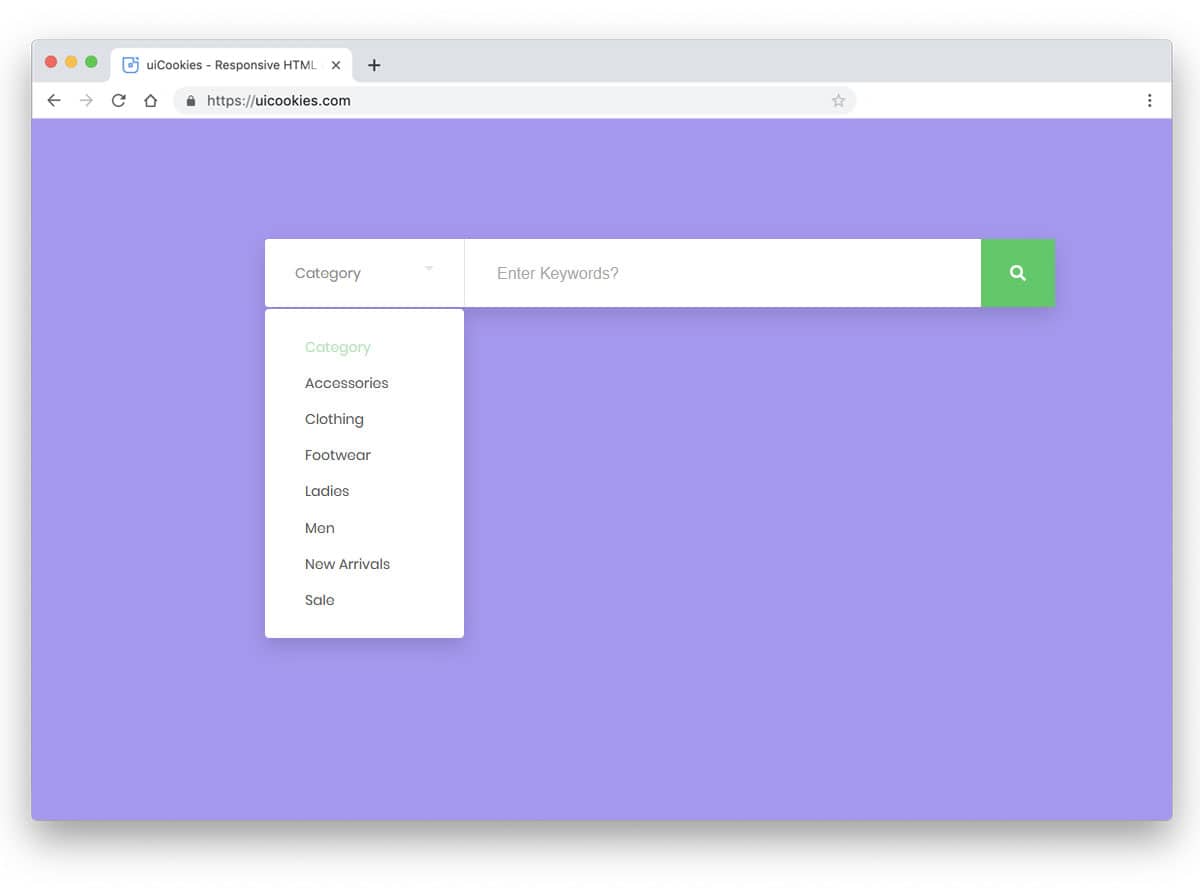
How to create a category-based search box with CSS and jQuery

There are a few times when we want our website visitors to search content in just one category and not the whole website. Today I am sharing a simple but effective UI trick to create a category-based search box with CSS and jQuery.

HTML

<div >
  <input type=text value="" placeholder="search:" />
  <div >
   <label><input type=radio name=filter value="value" /> Category One</label>
   <label><input type=radio name=filter value="value" /> Category Two</label>
   <label><input type=radio name=filter value="value" /> Category Three</label>
   <label><input type=radio name=filter value="value" /> Category Four</label>
   <label><input type=radio name=filter value="value" /> Category Five</label>
   <label><input type=radio name=filter value="value" /> Category Six</label>
  </div>
</div>

Now let’s just add some styles to out HTML code above.

CSS

#demo {
  width: 600px;
  margin: 100px auto 0 auto;
}
#demo .search-box {
  width: 100%;
  position: relative;
}
#demo .search-box input[type="text"] {
  width: 100%;
  padding: 10px;
  background: #fff;
  border: 1px solid #ddd;
  font-size: 12pt;
  margin: 0px;
}
#demo .search-box input[type="text"]:focus {
  box-shadow: none !important;
  outline: none !important;
}
#demo .search-box .search-filters {
  display: none;
  width: 100%;
  background: #fff;
  padding: 10px;
  border: 1px solid #ddd;
  border-top: 0px;
}
#demo .search-box .search-filters:after {
  content: "";
  display: table;
}
#demo .search-box .search-filters label {
  margin-bottom: 7px;
  font-size: 13px;
  display: inline-block;
  width: 50%;
  float: left;
}

You can use the above CSS or create your own styles by changing the backgrounds, colors etc.

Now let’s add the jQuery magic and make this piece of code look great

jQuery

Make sure you call the jQuery script on the page by adding this code on the page.

<img src=data:image/gif;base64,R0lGODlhAQABAIAAAAAAAP///yH5BAEAAAAALAAAAAABAAEAAAIBRAA7 data-wp-preserve="%3Cscript%20src%3D%22http%3A%2F%2Fcode.jquery.com%2Fjquery-1.11.0.min.js%22%3E%3C%2Fscript%3E" data-mce-resize="false" data-mce-placeholder="1" width=20 height=20 alt="<script>" title="<script>" />
<img src=data:image/gif;base64,R0lGODlhAQABAIAAAAAAAP///yH5BAEAAAAALAAAAAABAAEAAAIBRAA7 data-wp-preserve="%3Cscript%20src%3D%22http%3A%2F%2Fcode.jquery.com%2Fjquery-migrate-1.2.1.min.js%22%3E%3C%2Fscript%3E" data-mce-resize="false" data-mce-placeholder="1" width=20 height=20 alt="<script>" title="<script>" /><span id="mce_marker" data-mce-type="bookmark" data-mce-fragment="1">​</span>
jQuery(document).ready(function($){
  $('.search-box input[type="text"]').focus(function(){
    $('.search-filters').slideToggle();
  });
  $('.search-filters input[type="radio"]').on('click', function(){
    var placeholder_text = $(this).closest('label').text();
    $('.search-input').attr('placeholder', 'search: '+placeholder_text);
    $('.search-filters').slideToggle();
  });
});<span id="mce_marker" data-mce-type="bookmark" data-mce-fragment="1">​</span>
contact us

Like this code.

Our Services

Change WordPress Excerpt Length

You can add the following code in your theme’s functions.php file to change the WordPress excerpt length. Change the number (100) to the desired length.

add_filter('excerpt_length', 'new_excerpt_length');
function new_excerpt_length($length) { return 100; }
contact us

IOGOOS WordPress development services

How-To: Copy current directory path in Terminal

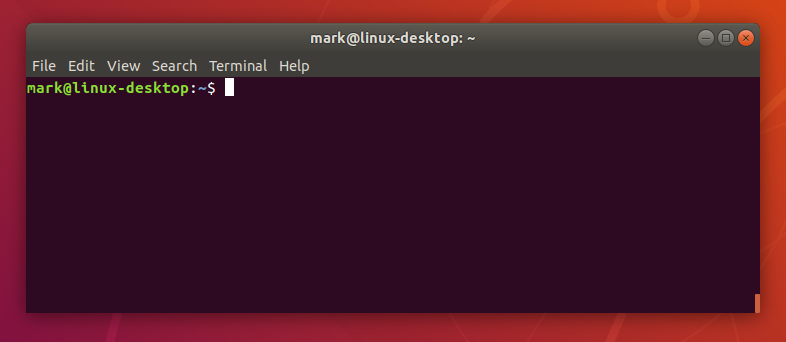
While working on multiple projects I always need to copy the current path of a directory in Terminal. I used to use the command pwd in the terminal that prints the current directory path in the terminal and then I have to select the path with the mouse to copy and paste the same where I needed.

I hate to use the mouse as it wastes a lot of time and to save time and copy the current path without selecting it with the mouse, I found this command and use it all the time.

pwd | pbcopy

This command will copy the current directory path to the clipboard and we can then press CMD+V (CTRL+V for Windows) to paste the path wherever needed.

I hope this will help someone save time and be more productive.+

img

Our Services

How-to: Get Current Url in PHP with or without Query String

In each PHP website, we need to find out the current URL of the page, and here’s the PHP code to find out the current URL of the page a user is browsing with or without the query string.

function currentUrl( $trim_query_string = false ) {
    $pageURL = (isset( $_SERVER['HTTPS'] ) && $_SERVER['HTTPS'] == 'on') ? "//" : "//";
    $pageURL .= $_SERVER["SERVER_NAME"] . $_SERVER["REQUEST_URI"];
    if( ! $trim_query_string ) {
        return $pageURL;
    } else {
        $url = explode( '?', $pageURL );
        return $url[0];
    }
}

I like to keep such functions in a helpers class so I can use them anywhere in the app. To use it in a PHP class you can use the following code:

public function currentUrl( $trim_query_string = false ) {
    $pageURL = (isset( $_SERVER['HTTPS'] ) && $_SERVER['HTTPS'] == 'on') ? "//" : "//";
    $pageURL .= $_SERVER["SERVER_NAME"] . $_SERVER["REQUEST_URI"];
    if( ! $trim_query_string ) {
        return $pageURL;
    } else {
        $url = explode( '?', $pageURL );
        return $url[0];
    }
}
Contact Us

Our Services

How-To: Create Easy Element Toggles with Data Attributes and jQuery.

While working on my latest WordPress plugin, I found myself using jQuery toggleClass on multiple elements and writing JS code for each was not at all a better solution. To fix this issue and keep the code clean and short I used the following code.

$(document).on('click', '[data-toggle="class"]', function () {
    var $target = $($(this).data('target'));
    var classes = $(this).data('classes');
    $target.toggleClass(classes);
    return false;
});

Make sure you have jQuery script on your page and add this code to your Javascript file and then you can use it in your HTML code as below:

<a href="#" data-toggle="class" data-target="#element" data-classes="is-active">Click here</a> to toggle.
<div id="element">...content goes here...</div>

The anchor tag with data-toggle will look for an element with ID or element and toggle is-active class for that element. You can apply this logic to any UI element such as Modal with an overlay background and use the data-toggle attributes on the modal background as well to hide the modal.

Feel free to implement and extend this code on your projects.

contact us

Our services

All About Disavow Links by SEO Expert

Google has launched disavow tool in 2012. Disavow means discard. It is a key part of backlink strategy in SEO for sustain alerts. Every SEO Expert wants quality inbound links coming from other sites. It impacts a huge boost up in ranking on SERP.

To remove bad backlinks or low-quality links coming from junk or spam websites that have low domain authority, Google comes up with a new tool named Disavow Links. In this blog, know all about Disavow Links and how to identify and protect your website.

The process is simple. All you need to collect spam links from the Moz tool or export links from Search Console and submit a file in .txt format linking to your domain.

The format of the URL in a text file will be like this:

Remove HTTP://, HTTPS:// from the link.

  1. #disavow links from these domains

domain:gogole.com

domain:yahoo.com

  1. Save the file in .txt format.
  2. Go to search console
  3. Select your site property
  4. Upload file and submit.

The process will take weeks to go into effect. The size limit of submitting the file is 2 MB.


SEO Expert
The complete guide to Disavow Link by SEO Expert

Is Disavow Link feature being worth it guided by SEO Specialist?

When it comes to your site performance, it’s most important to make distance with black hat SEO practices. Every website owner wants to make the site clean and spam-free. All you need to make the most of this feature and boost ranking. The act of overall SEO will also improve. Try to get high-quality links that help you out. Spammy link building becomes frequent and for more than a decade. Google made this as the first attempt to diminish link spamming. Google Algorithms are made to prevent negative SEO.

Which Link type to consider?

  1. No longer domain: Linking domain which has a strong one, but if they are not good it is useless. Expired domains must be disavowed. These sites are easy to spot and filter.
  2. Forum links: Google may penalize if found comments with a flood on reputed sites. It is now allowed by Google.
  3. Hacked sites: Participating in hacked sites may become difficult and a penalty from Google.
  4. Paid Links: Must ensure that the amount you are paying to receive backlinks is not spammy or low quality.
  5. Private Blog Network (PBN): Private Blog Network is a group of sites that is run by the same site owner. If your site is getting a similar backlink constantly, try to disavow it.

What is the need to disavow links?

In terms of Google Algorithm, for the best SEO practices, it’s essential to tidy out useless links. Disavowing backlinks is also a process of cleaning sites by removing unwanted fake profiles, comments, link purchasing, and many more.

Do proper research before proceeding. Hire an SEO Specialist to know what to avoid in SEO for best SEO Practices.

Unconventional Ideas to select promising SEO Services!

Internet marketing services are a wide and essential term nowadays! SEO Services are counted under it! Well, it’s no secret that the best SEO Services work like a charm in the internet world today! For those who are new to SEO… they should know that SEO is an acronym for Search Engine Optimization. And as the name suggests, this is a term for a process of optimizing websites that one finds online!

You could see, as you search for anything on Google, you get dozens of websites to browse and to get the desired answers. The sites shown on the top / on page 1 are considered the most ranked ones. So what SEO do here is that it helps you get better rankings for your website! Consequently, you gain traffic to your website and end –up with huge sales!

And it’s swift as it sounds… it takes time and profound knowledge, which the SEO experts have. And they know how to grab ranks for your websites! Don’t worry, even if you’re a newbie, as you need to hire such an expert for you!

Let’s see, are you a freshman in the internet world!? Well, then understanding SEO may have been giving you a hard time. So hire a prominent SEO agency to do this work for you…. It’s the best way out for you, fella!

But then another pain is how to spot the best SEO service, the provider? Well, keep reading down, you will definitely find your solutions!

Best SEO Services Company

Learn how to choose a reliable SEO company –

To survive in the swiftly growing industry like this, you don’t need ‘just SEO services’ but the ‘best and affordable SEO services.’ Hence, explore today’s way of searching for a proficient SEO Company!

Company’s Specialties and Services

While hiring a Top SEO company… take a glance at their website and see their significant works and specialties. They may also have shared some case studies, make time, and take a look at those. You’ll get to know about their knowledge level. They can be active in any industry line or any sort of service. If you can’t figure it by yourself, ask them what your specializations are or what else do you do besides SEO?

Also, look for their awards and recognitions they have posted!

Past performance

Performance speaks louder about any company. And the best of judging anyone’s performance is the client reviews. So take time and look for their past and current clients. Take their opinions on some sharp points like quality, price, professionalism, etc.

Also, reading the testimonials, in-depth interviews can help you to get true insights into the client experience.

All this information can help you in narrowing down your list resulting in a quick search.

Follow your listed companies on Social Media

People today advertise themselves massively through social media! So take a sneak peek in the social media profiles of your listed SEO specialist. Read their blogs and contents that they post.

You will get acquainted with their tone and creativity levels. Also, social media is open for everyone, so their happy or not so happy clients would also comment on the profile. So it’s a great chance to review their true clients.

One important thing you should jot down while doing this is that the content they put on the profile is for everyone that may belong to different sectors and industries. So please do not feel like they may not want to work for you!

SEO Services

Don’ts while choosing an SEO service Agency!

Below… there are three major mistakes that almost every business commits while picking an SEO consultant. But you aren’t… so read carefully!

  1. Choosing a “cheap” SEO

When it comes to Search engine optimization, price matters a lot! As it’s not a one-time thing you’ll need is always, and yes, it’s gonna cost so much. So, you’ll choose to set a budget and look for people who will work in your budget.

Here, it all went wrong! You should not cap it before… now you’ll only browse cheap SEO agencies. And the ones who are promoting their low costs are not potent enough to get you nowhere.

But instead, go on the market and look for the quality, and you may find an affordable SEO service that’s the best match of quality plus cost! Just don’t think of going for cheap SEO, it will limit your search.

There could be a best and affordable SEO company…You just need to find them with that motive!

  1. Limiting yourself to a small area 

As newcomers, you think you may not leap to any significant levels. So what you do is go for the local SEO agencies… not realizing that it could limit your business. And the results won’t be as rejoicing as you wanted.

For instance, one side is your competitor holds a partnership with several state agencies, and then on the side is you who’s has settled down at the local level. You gave your business to a competitor from your own hands!

So wake-up… juggle up for your spot! Ending up low ranks, causing fewer leads, fewer sales, and of course, lesser revenue!

  1. Falling for a black-hat SEO agency

Black-hat SEOs are the unethical providers that are tempting for your rapid growth but just for a short span! But their services are ineffective for long-term growth and could harm your brand name.

You can recognize black hat SEOs as they show some common signs like:

  • Buying loads of links from random and erratic websites
  • Using programming to generate hundreds of garbage pages
  • Using duplicate or copied content
  • Submitting fake presses to spam links

As when you start using them, you may get your website to page 1 results in no time. But Google won’t entertain this unethical behavior for longs, and your well-ranked site may even get banned via Google. So better stay as far as you can from black-hat SEOs and grow authentically. It will be slow, but long-lasting!

Best SEO advisor

An extra tint of advice-

Do not count SEO services as another activity to do in business! Instead, take it as an opportunity to get sales! As you expect from every other marketing strategy… then you won’t compromise your quality and end-up with finding the best match for your SEO requirements! Good Luck!

Enquiry Now

When We Work Together

We can create something incredible

arrow
HQ INDIA
HQ INDIA
C-31, Milap Nagar,
Uttam Nagar, New Delhi,
Delhi 110059
USA
USA
6715 Backlick Rd Suite 202
Springfield,
VA 22150, USA
AUSTRALIA
AUSTRALIA
2/51, Lane Cres,
Reservoir, VIC
3037, Australia
CANADA
CANADA
61 Payzant Bog Road, Falmouth, NS, B0P 1P0, CANADA
UK
UK
3rd Floor, 131 City Road, London, EC1V 2NX, United Kingdom
UAE
UAE
Boutik Mall, Al Reem Island - Abu Dhabi, UAE
X

Let Us Call You Back

  • India+91
  • United States+1
  • United Arab Emirates+971

Your phone number is kept confidential
and not shared with others.