7 checklist – How to know if your website need redesign?

Is Your Website Still Driving Results in 2026 or Quietly Losing Opportunities?

In today’s fast-evolving digital landscape, a website is more than just an online presence—it is a powerful tool for lead generation, brand positioning, and business growth. If your website was created a few years ago, it may no longer meet modern standards of user experience, mobile responsiveness, or search engine optimization. Studies show that websites can start losing effectiveness within just 2–3 years due to changing design trends, user behavior, and Google algorithms . An outdated or underperforming website can silently reduce conversions, increase bounce rates, and impact your online visibility. Instead of rebuilding everything, updating your existing checklist with fresh insights can help you evaluate what’s working and what needs improvement. In this extended guide, we build upon your original 7-point checklist to help you identify gaps, improve performance, and turn your website into a high-converting business asset.

1. Do you like to see it fresh?

Redesigning your website at regular intervals plays a crucial role in keeping your brand fresh, engaging, and competitive in today’s digital landscape. Just like people lose interest in having the same food repeatedly, users can quickly become disengaged when they see the same outdated website design every time they visit. A modern, visually appealing, and user-friendly website not only captures attention but also builds trust and credibility. Search engines also favor websites that are updated frequently with improved design, faster loading speed, and better user experience. By investing in strategic website redesign services, businesses can enhance mobile responsiveness, optimize SEO performance, and increase conversion rates. Instead of making random changes every few weeks, it’s important to follow a data-driven approach that aligns with user behavior and current design trends. A professional website design company can help you identify what needs improvement and implement changes that deliver measurable results. Ultimately, a refreshed website keeps your audience engaged, encourages repeat visits, and turns visitors into potential customers, helping your business grow consistently online.

2. How to make a website

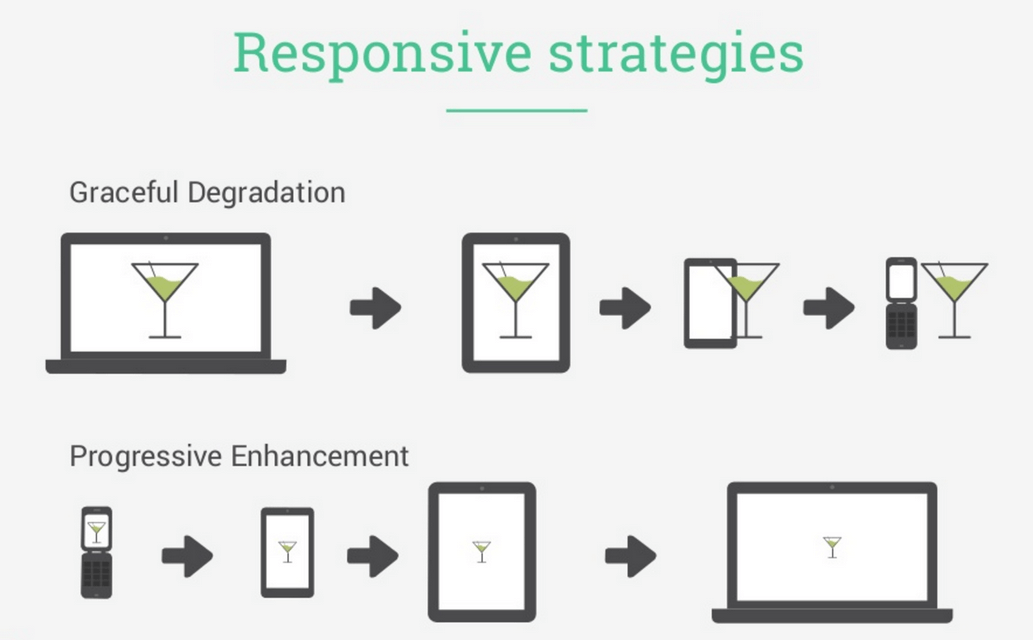
With the change in technology, people are also changing their ways to use the internet. There was a time when a website was used only on desktop, but know traffic is moving to different modes. Mobile phones are playing a huge role in this change. Smartphone users are increasingly turning to their mobile devices to access the web, and without a mobile site, your business is missing out on a large consumer base

Companies should create a website that works on every device and provides a good view. Web developers and website Builders should focus on cool website designs to acetract clicks.

For your users to maneuver through your website, you need to constantly update and adapt. Top e-commerce website developers are continuously checking and making changes on their website so that whenever you come, you see something new and feel fresh…!!

3. The homepage is your first impression.

Your home page is like your drawing room which defines a complete overview of your company. What makes a good landing page is most important in order to get visitors’ attention.

The Focus should be on Simplicity on the website. Putting so much information in one place forever makes a user feel confused and bored. It is just like you are in the storeroom which has all the old stuff in an unorganized way. Asking visitors to take the pain in searching for one information on your website can make them frustrated and the last click on your page.

4. Errors and Slow Loading.

How you feel when you click on a website and it takes too long to get load? Today we do not have that much to see that loading circle. If a user encounters a slower website, they won’t stick around. Take a look at your site from your visitors’ point of view (use different browsers, as this can also be the issue). You must have heard to use some websites on Internet Explorer only or on Mozilla. If your website also needs only a specific browser to work, it means it should be redesign in proper form.

5. Affordable website design

India is growing in the IT and computing technology market. Now it has the best web development services available at a very fair price. You can easily get your website redesign on timely bases to avoid any issue or downtime of your website with a professional website design company.


Also, giving your website redesign to some company is like giving your all business data. Before such transfer, companies should verify with the web development company.

6. Always up to date with your Branding

The reason why this step is important so that everything designed will be consistent and showcase your company as envisioned. Make sure that all your brand logo, color, and language, fonts are accurate. Aligning specific button colors with particular stages gives consistency across the site that can clarify your user journey and improve their experience.

7. Important of the small business website redesign

Small business groups can use the website to enhance their chances to earn more profit. Selling goods online is easy and dose does not require a big setup. Making changes in design will make users believe that there is someone who is taking care of the webpage and will help me out in case of need. There are many best website designing companies is available in the market for such changes and provide website development services.

The Final Conclusion – In the 21st century, a good design, updated, and secure website can be an hour key to doing business. Also, it’s time to adopt a mobile-friendly website too.

It is quite possible that you don’t know even if your website needs to be updated or redesign. See all these points we have just discussed and don’t wait, before clicks on your website go down, get it fixed.

Trying something out of the box which makes the visitor feel their importance for your business. Just don’t end up making pages’ so heavy?

Why website needs Internet Marketing Services for branding?
Know more.

How do I know if my website is outdated?

If your website looks old, loads slowly, or doesn’t work smoothly on mobile devices, it likely needs a redesign

Will redesigning my website bring more leads?

Yes, improving user experience, speed, and clarity can directly increase conversions and lead generation.

Can I redesign my website without losing SEO rankings?

Absolutely—if done properly with redirects, optimized structure, and updated content, redesign can boost rankings instead.

What is the biggest benefit of a website redesign?

The biggest advantage is improved performance—better user experience, higher engagement, and increased business growth.

Why I use WordPress as CMS?

If you think WordPress is yet another blogging platform, take a quick look at other pages of iogoos.com (right from the homepage). Do you really think we could do this with  “Just-Another-Blogging-Software”? Absolutely not!!

Custom Pages, Custom Widgets, Photo Galleries, Portfolio, eCommerce! What, out of these, and even more hasn’t been set up using WordPress.

Only recently, I updated my portfolio with more websites that I had finished, which were not under non-disclosure policy. After adding these projects in my portfolio, I realized that in accomplishing 90% of my work, WordPress plays the role of a CMS. With all the work done so far I am amazed by just how much of its capability I have discovered and how much of it is still unknown to me. Here are a few things that my clients ask when I recommend using WordPress, even for static websites, and what I’ve to say to back my recommendation.

Is it easy to use?

It is The Most Robust and Feature-Filled Platform, which is not only easy to use, but also, very much user friendly. So far all my clients are really happy with the decision to use WordPress as a backend. Moreover, WordPress.tv has made our lives much easier. I refer my clients to this website to learn the features and backend functionality while I am busy creating the best solutions for their requirements.

I need a blog as well…

I guess everyone has realized the value of blogging for their personal and professional web presence by now and most of my clients ask for a blogging platform with a unique and custom website design. It’s really easy to create a few custom pages within WordPress, rather than, creating a WordPress theme that matches the website design. And its really easy to embed WordPress features on these static web pages.

What about Search Engine Optimization?

I am pretty sure you are not new to this term and would want your website to be listed in top search results. With WordPress, you can use plugins like All in One SEO Pack, just to name some, that does most of the work without user intervention. SEO is a wide topic and there’s a lot that needs to be done to achieve good search engine rankings. However, a WordPress installation with a few plugins can help you get there without much hard work. You might want to check a few posts I have written on search engine optimization.

What all WordPress can do?

Honestly, I can’t deny that after using WordPress I haven’t even cared to search for any other CMS. WordPress is an amazing platform which can be customized to create Personal websites, Portfolio, e-Commerce, Galleries and Photo Blogs, Magazine or News websites, Article Libraries and a lot more. If you are comfortable with custom functions and template tags you can actually do wonders with just a single custom WordPress theme.

I don’t know programming?

While creating websites for my clients, I make sure they don’t have to spend their valuable time learning xHTML/CSS to update their websites. I have taken WordPress customization to next level where it provides a separate section in admin area to update the front end of our custom themes. It also has WYSIWYG capabilities where you can update and stylize the content which is not a part of WordPress post or page.

Moreover, these custom functions don’t save any data in core WordPress database tables (wp_options) so there’s no chance it won’t work with any other plugins and features.

Here’s a screenshot of Custom Theme Options I provide to make my client’s life a bit easier.

Theme settings

That’s not all, to add a few more features in the list…

  • WordPress is Free and Opensource
  • WordPress is easy to install and upgrade
  • WordPress is standard compliant
  • WordPress is Popular (CNET, Ford, ZDNET and various other popular sites has used WordPress as a CMS)
  • Free support from a vibrant and amazing community of developers and contributors
  • Huge amount of documentation is available
  • Plugins are available for almost everything you can think of

I bet no other CMS can compete with this master piece. If you are using WordPress as CMS please drop your website links in comments. Don’t try to spam as a very powerful spam protection plugin (Akismet) comes with its default installation 😀

contact us

Check Our Portfolio

An easy way to create Loading Bar!

“People count up the faults of those who keep them waiting”
Seems like I kept them busy decoding this loading bar 😀

Recently, while browsing I landed on a page on StackOverflow.com where people were discussing how I implemented this loading bar on www.iogoos.com I could sense a lot of confusion in the discussion so thought I would take the mystery out as I love to share best practices. Here’s how you can create a loading bar in a few steps…

Things You’ll Need

  1. A nice loading image: If you are good at creating animated GIF images that are nice, otherwise you can create a loading image with this cool Ajax Loading Gif Generator.
  2. jQuery: We are creating this loading bar using jQuery so download the jQuery latest version here.

jQuery Code within <head>..</head> tags

<script type=text/javascript src=jquery.js></script>
<script type=text/javascript>
$(window).load(function(){
      $("#loading").hide();
})
</script>

HTML Code within <body>..</body>tags

<div id="loading">
    Loading content, please wait..
    <img src=loading.gif alt="loading.." />
</div>

Make sure you add this code just below the starting <body> tag so it should be downloaded first.

CSS Code for loading DIV

#loading {
    position:absolute;
    width:300px;
    top:50px;
    left:50%;
    margin-left:-150px;
    text-align:center;
    padding: 10px;
    font:bold 11px Arial, Helvetica, sans-serif;
    background: #222222;
    color: #ffffff;
}

Use your imagination and create something nice & unique.

Your comment, suggestion, and feedback are highly appreciated. There’s more to come to stay tuned…

Contact Us

Check Our Portfolio

CSS Tips – Get Consistent Results in All Browsers

Web standards are prevailing guidelines used on the World Wide Web to ensure websites and information is accessible to all in the most efficient manner. Most Web browsers have different default settings for the base margin and padding.

This means that if you don’t set a margin and padding on your body and XHTML tags, you could get inconsistent results on the page depending upon which browser your users are using to view the page. A simple way to solve this is to set all the margin and padding on the XHTML and body tags to 0:

html, body {
    margin: 0px;
    padding: 0px;
}

This will keep your design structure in the same place on all browsers.

Borders

You may be thinking “but no browsers have a border around the body element by default”. This is not strictly true. Internet Explorer has a transparent or invisible border around elements. Unless you set the border to 0, that border will mess up your web page layouts. So add the following to your body and XHTML styles:

html, body {
    margin: 0px;
    padding: 0px;
    border: 0px;
}

Here’s a nice and detailed article on CSS Reset: Resetting Your Styles with CSS Reset Stay tuned for more web design tips.

Check Our Portfolio

Enable Auto-Complete Search in WordPress Blog!

“One sometimes finds what one is not looking for”

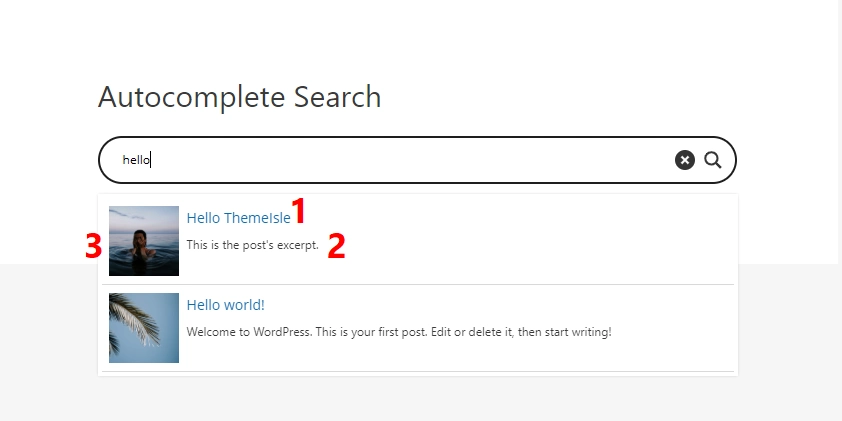
I am pretty sure that you are aware of Google Search Suggest and Yahoo Search Assist features. This feature helps you effortlessly find exactly what you’re looking for. No doubt, it lists a few suggestions to keep the user looking for more and more.

As you type something in the search box, it automatically offers search terms and phrases in real-time. How nice will it be to have the same feature on your website or blog. In this post, I am going to explain an easy way to add a search suggestion feature to your WordPress blog or website.

Things You’ll Need

jQuery: You can download the latest version from jQuery.com
Autocomplete Plugin: Download this plug-in by Jörn Zaefferer from //bassistance.de

Now let’s play with some code

Include this code within <head>..</head> tag.

<script type=text/javascript src=js/jquery.js></script>
<script type=text/javascript src=js/jquery.autocomplete.pack.js></script>
<link href="js/jquery.autocomplete.css" rel="stylesheet" media="screen" type=text/css />

Here I am assuming you are using “js” folder to keep all your java scripts and supported files. You may need to update the location of these files based on your folder setup.

Here’s the actual jQuery code to enable this feature on an input box:

<script type=text/javascript>
    var data = "Search Terms Separated With Spaces".split(" ");  
    $("#myInputBox").autocomplete(data);
</script>

Variable “data” hold the terms that you would like the user to see in the search suggestion list and $(“#myInputBox”) is the id of the search input box.

Let’s check out how we can automatically call WordPress tags in our search suggestions, using WordPress wpdb class:

<?php 
    global $wpdb;
    $search_tags = $wpdb->get_results('SELECT name FROM $wpdb->terms');
    foreach ($search_tags as $mytag){
        echo $mytag->name. ' ';
    }
?>

Here I am using WordPress wpdb class to fetch all tags assigned to the posts.

Here’s the complete code to enable this feature on your WordPress blog. Just replace the folder name with actual folder and the jQuery selector $(“#myInputBox”) with the actual id of search input box.

<script type=text/javascript src=PATH_TO/jquery.autocomplete.pack.js></script>
<link href="PATH_TO/jquery.autocomplete.css" rel="stylesheet" media="screen" type=text/css />
<!-- This goes in the head -->
<script type=text/javascript>
	$(document).ready(function(){  
		var data = '<?php global $wpdb; $search_tags = $wpdb->get_results("SELECT name FROM $wpdb->terms"); foreach ($search_tags as $mytag){ echo $mytag->name. " "; } ?>'.split(" ");
		$("#ID_OF_SEARCH_INPUT_BOX").autocomplete(data);  
	});
</script>

Don’t forget to add your inputs in the comments section below.

Contact Us

Let’s Check Our Portfolio

How to read minified CSS with ease?

Today we have a quick tip for those who feel depressed and cry when they see the holy grail of CSS in one single line in their website/theme stylesheets.

Recently I started hearing from a lot of people complaining about their theme developers using minified CSS in their themes for maximizing performance without any consideration for their ease of use/customization. People keep asking me if there are tools that convert minified CSS back to normal human-readable form and recently someone even asked me to do a job – normalize some minified stylesheets (of course I didn’t do it and rob him off!)

Whether or not developers should minify CSS when giving out themes/websites has been a subject of debate for a long time but why developers choose to minify some parts of their stylesheets has often been overlooked. Performance issues for larger projects, minifying the reset styles (you don’t have to change them anyway!) and non-developer license are just some of the reasons!

Anyway, coming back to the subject of this post – How can you read minified CSS with ease?
(No, we are not going to install any 3rd party software!)

Simply validate the CSS (only the minified part if you have other files attached as well) in question using the W3C’s CSS Validation service!

The output of the validation check is:

  1. whether or not, your CSS validates to standards set by W3C.
  2. Normal, Properly Formatted, and Easily Readable version of your minified/compressed CSS

Do you need to keep the formatted and decompressed CSS? Just copy it from the validation output and replace your version. Voila!

Contact Us

See Our Portfolio

An easy way to create a light-box with jQuery & CSS

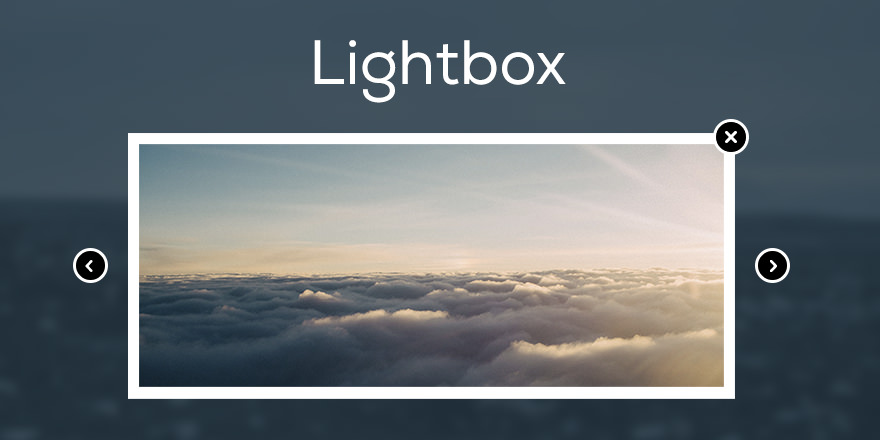
As you already know that I’ve been working on improving the performance of my website and I needed a simple solution to create a light-box effect for Live-Chat on this website. I had many options to choose from available jQuery plug-ins however, the idea was to optimize the code with minimal use of heavy third-party scripts and CSS. Moreover, the only thing I needed was a light-box effect without any other functionality.

So I created the light-box effect with a few lines of code using CSS and jQuery.

Let’s start coding 🙂

xHTML Code

Place this code within <body></body> tags where ever you like.

<a id="show-panel" href="#">Show Panel</a>
<div id="lightbox-panel">
<h2>Lightbox Panel</h2>
You can add any valid content here.
<p align=center><a id="close-panel" href="#">Close this window</a></p>

</div>
<!-- /lightbox-panel -->
<div id="lightbox"></div>
<!-- /lightbox -->

The first line of the above code is a link with id “show-panel” which will display the “light-box” and the “lightbox-panel” DIVs, similarly, on line 7 we have a link with ID “close-panel” to hide these DIVs. This will be handled by jQuery of course.

#lightbox-panel will hold the content to be displayed and #lightbox will add a transparent background behind our content panel. Let’s write some CSS code to stylize these two DIVs before we add the functionality to our links with jQuery.

CSS Code

You can add this code within the document’s <head></head> tag or in any linked style sheet.

* /Lightbox background */
#lightbox {
  display:none;
  background:#000000;
  opacity:0.9;
  filter:alpha(opacity=90);
  position:absolute;
  top:0px;
  left:0px;
  min-width:100%;
  min-height:100%;
  z-index:1000;
}
/* Lightbox panel with some content */
#lightbox-panel {
  display:none;
  position:fixed;
  top:100px;
  left:50%;
  margin-left:-200px;
  width:400px;
  background:#FFFFFF;
  padding:10px 15px 10px 15px;
  border:2px solid #CCCCCC;
  z-index:1001;
}

Note: The z-index value for #lightbox-panel should be greater than the z-index value of #lightbox to display it above the transparent background and both should have the property display as none so they should not show up by default or if the users have Javascript disabled in their browsers.

Let’s put some life to our code with jQuery.

jQuery Code

You can add this code within the document’s <head></head> tag and we are done.

$(document).ready(function(){
  $("a#show-panel").click(function(){
    $("#lightbox, #lightbox-panel").fadeIn(300);
  });
    $("a#close-panel").click(function(){
    $("#lightbox, #lightbox-panel").fadeOut(300);
  })
});

Pretty simple, huh!!

Could it get easier than this?

Once you click the link with ID “show-panel” it will display both the DIVs with some nice fade effect and if you click the link with ID “close-panel” it will hide these DIVs.

I hope you enjoyed this little trick to create the simple light-box effect with CSS and jQuery You are most welcome to share your inputs and code in the comments below.

Contact Us

See Our Portfolio

An easy way to create a login panel with jQuery and CSS

Among many studies conducted to find out just what influences people’s perception of a website’s credibility, one interesting finding is that users really do judge a book by its cover… or rather, a website by its design.

Rapid changes in design trends are driving focus towards its usability. More and more features are being zipped into a plain and simple design for users to get bountiful results without spending more than a jiffy. The back-end coding is the key device to achieve this simplicity in design.

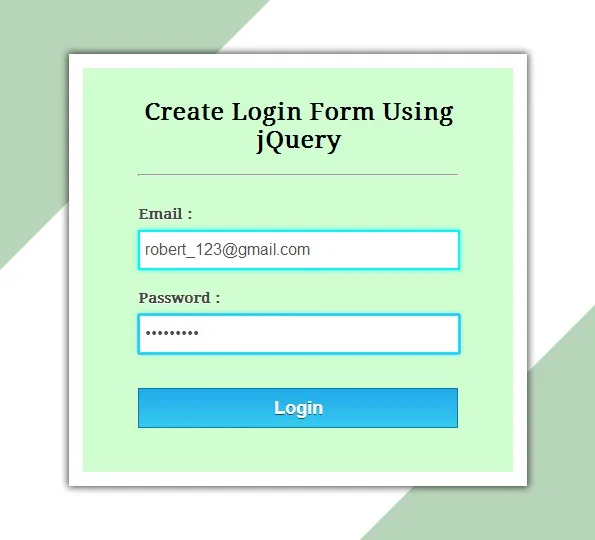
Keeping this mind, I’ve designed a small script to introduce a sliding login box into your website, just as you see in Twitter login page. The script comprises jQuery & CSS techniques to display this arty feature. Checkout the code below and try it yourself or simply download the ready to use files.

HTML

<div id="demo-header">

	<!-- Code for Login Link -->
	<a id="login-link" title="Login" href="#login">Clients Area</a>

	<!-- Code for login panel -->
	<div id="login-panel">
		<form action="" method="post">
			<label>Username: <input type=text name=username value="" /> </label>
			<label>Password: <input type=password name=password value="" /> </label>
			<input type=submit name=submit value="Sign In" /> <small>Press ESC to close</small>
		</form>
	</div>

</div>

CSS

<style type=text/css>

    a{text-decoration:none;}

    #demo-header{
        width: 980px;
        margin: 0 auto;
        position: relative;
    }
    #login-link{
        position: absolute;
        top: 0px;
        right: 0px;
        display: block;
        background: #2a2a2a;
        padding: 5px 15px 5px 15px;
        color: #FFF;
    }
    #login-panel{
        position: absolute;
        top: 26px;
        right: 0px;
        width: 190px;
        padding: 10px 15px 5px 15px;
        background: #2a2a2a;
        font-size: 8pt;
        font-weight: bold;
        color: #FFF;
        display: none; 
    }
    label{
        line-height: 1.8;
    }
</style>

jQuery

<script src=//ajax.googleapis.com/ajax/libs/jquery/1.11.0/jquery.min.js></script>
<script type=text/javascript>

	// jQuery to apply actions to the link
	$(document).ready(function(){
	    $("#login-link").click(function(){
	        $("#login-panel").slideToggle(200);
	    })
	})

	//jQuery to apply actions to the ESC key
	$(document).keydown(function(e) {
	    if (e.keyCode == 27) {
	        $("#login-panel").hide(0);
	    }
	});

</script>
Contact Us

See Our Portfolio

WordPress Themes & Why You Should Have Unique Design

When you have a website or blog you want to stand out from all the other websites, which is why having a good WordPress theme that sets you apart is so critical. There are millions of websites that are run using WordPress and with that, there are many themes out there that are being used many times over. This can cause your website to look like many other websites if you are using one of the standard themes out there.

If you can find a theme or someone to create a WordPress theme for you that is unique, you will be one step ahead in terms of branding and making your website stand out. Free WordPress themes are not the best way to go because anyone can have the same exact design as you. Not only will it not stand out to your visitors, but search engines as well. If someone comes across your website and they have seen that design before, they may think twice about visiting your site again.

The search engines will also see your site as the same as many other websites on the web. This can play a role in your website ranking well for any keywords that you want to be ranking for. Search engines have been cracking down on all the non-unique, or otherwise spam-type websites. One way that the search engines will see your site as a spam site is the design and layout. If your website is the same as millions of other websites, they will automatically put your website on hold until it creates some authority.

In conclusion, the best way to create brand equity and build a brand for yourself or your company is to have a unique design. Visitors and search engines will see your website as a legitimate source for quality information or products.

contact us

Check Our Portfolio

How to make Blurry Text with CSS

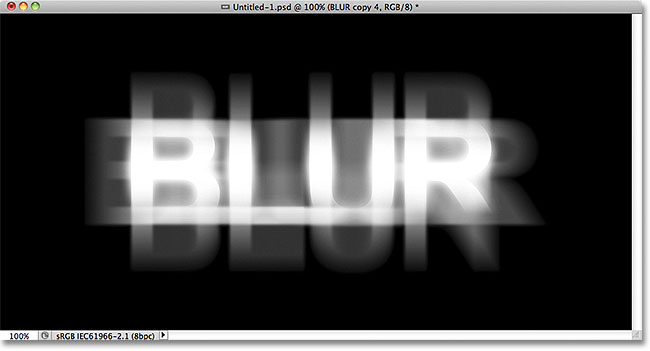
Its pretty easy to make some blurry text with CSS. We can do it by just making the text color transparent and adding some text shadow. Here’s the code for the same:

Blurry Text with CSS

To do it on the normal text we can create a class and use SPAN tag to make the text blurry.

Example: This text will be blurry!

HTML Code

<span >This text will be blurry!</span>

CSS Code

.blur{
    color: transparent;
    text-shadow: 0 0 3px rgba( 0, 0, 0, 0.5);
}

We can make the links blurry on hover by adding the blurry styles on a: hover pseudo-class.

<a href="" title="">This link text will be blurry on hover.</a>
a.blurry-links{
    color:red;
}
a.blurry-links:hover{
    color: transparent;
    text-shadow: 0 0 3px rgba( 0, 0, 0, 0.5);
}

You can always change the RGB values and the opacity for the text-shadow property and have the blurry text in a different colors.

Contact Us

Our Website Design Sevices.

Enquiry Now

When We Work Together

We can create something incredible

arrow
HQ INDIA
HQ INDIA
C-31, Milap Nagar,
Uttam Nagar, New Delhi,
Delhi 110059
USA
USA
6715 Backlick Rd Suite 202
Springfield,
VA 22150, USA
AUSTRALIA
AUSTRALIA
2/51, Lane Cres,
Reservoir, VIC
3037, Australia
CANADA
CANADA
61 Payzant Bog Road, Falmouth, NS, B0P 1P0, CANADA
UK
UK
3rd Floor, 131 City Road, London, EC1V 2NX, United Kingdom
UAE
UAE
Boutik Mall, Al Reem Island - Abu Dhabi, UAE
X

Let Us Call You Back

  • India+91
  • United States+1
  • United Arab Emirates+971

Your phone number is kept confidential
and not shared with others.